PROTOTYPE MANUAL
Play and record from the MPC
Make a loop in an open Live Set and look up the controls as you play.
Virtual MPC Sample 1.3.0.12 · Ableton Live 12.4.16 · macOS
Your first beat
Start with Virtual MPC Sample connected to Live through SampleTon. Use a test Set with an armed MIDI track, a loaded Drum Rack, and an empty Session slot highlighted on that track.
Find your drum hits
Open SAMPLE and select its default play view if a function chooser appears. Hold PAD BANK and tap Pad 3 to select bank C. If the rack has a hit on C1, Pad 5 plays it. Try two or three populated pads before recording.
Record into the empty slot
Check the highlighted slot in Live. Press SEQ REC, then play a short pattern on the pads. The empty slot in Live becomes a recording clip.
Turn the take into a loop
Press SEQ REC again to finish the take and hear it loop. If the take finishes on Live’s launch boundary, let that boundary pass before pressing another control.
Stop and relaunch
With the recorded clip still highlighted, press STOP to stop it. From the play view, hold Shift and tap Pad 1 to relaunch it. Check that Live and the virtual LCD follow the change. Save the Set in Live to keep the clip.
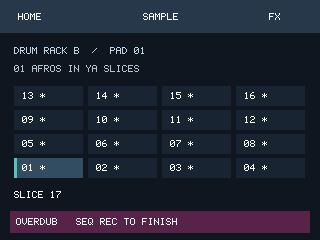
Control names
B1–B3 are the three buttons above the display. K1–K3 are the three knobs below it. Their jobs follow the labels on the current screen. Encoder means the main pushable dial. For a shortcut with Shift, hold it while using the other control.
If a mode opens a function chooser, turn the encoder to highlight a function and push to open it. B1 opens the default and B3 cancels.
Shortcut reference
Use the view column to check where each gesture applies.
| Action | Control | View or condition |
|---|---|---|
| Play or pause Live | PLAY | Transport |
| Continue playback | Shift + PLAY | Transport |
| Stop the highlighted clip | STOP | Active highlighted Session clip. Without one, stops the transport. |
| Relaunch the highlighted clip | Shift + Pad 1 | Drum Rack play view |
| Record, loop or overdub | SEQ REC | Start with an armed MIDI track and a highlighted Session slot. On an empty slot, press again to finish and loop. |
| Next pad bank | PAD BANK | Drum Rack play view |
| Previous pad bank | Shift + PAD BANK | Drum Rack play view |
| Jump to bank A–H | Hold PAD BANK and tap Pad 1–8 | Drum Rack play view. C1 is bank C, Pad 5. |
| Browse sounds in Live | SAMPLE SELECT | Live Browser |
| Open the sample picker | Shift + SAMPLE SELECT | MPC sample picker |
| Split at the cursor | B2 when labeled Split | Chop editor |
| Launch a Session clip | Tap its pad | Session Clips grid |
| Copy a MIDI or audio clip | Shift + ERASE | Session Clips grid. Copies to the next empty slot below it on the same track. |
| Edit a step | Hold the step pad and turn K1–K3 | Steps. Knobs edit velocity, length and timing. |
| Nudge a selected hit | Turn K3 | Events beat view, with a hit selected |
| Select an EQ band | Turn the encoder | EQ Eight. K1–K3 edit frequency, gain and Q. |
Troubleshooting
- Pads play no sound
- Check that the selected pad contains a sample, the track receives SampleTon MIDI, and the track is armed with monitoring set to Auto for this walkthrough.
- The record button targets the wrong clip
- Select the armed Drum Rack track and highlight an empty slot on that same track in Live before starting the take.
- A shortcut does something different
- Check the active screen and the labels above and below the display. The same panel control can have a different function in another view.